
Firefox extension
VPN extension for Firefox
Add FuzeVPN to Firefox and turn on protection in your browser.
It protects your browsing in Firefox. For your other apps, use the Windows or Android app, or a WireGuard or OpenVPN configuration file on Mac or Linux, included in the same subscription.
Free to install. To connect, choose your subscription: €1 a month with no commitment, or €10 for 12 months, with a 30-day money-back guarantee. See pricing
With a configuration file: iPhone · iPad · Mac · Linux
Install FuzeVPN and connect
Add the extension
Add FuzeVPN to Firefox from Firefox Add-ons, the official store.
Choose a plan or sign in
Not subscribed yet? Choose a plan, €1 a month or €10 for 12 months: your FuzeVPN account is created at checkout. Account created on the website with your email address: choose your password with the link received after payment. Account created with Google or linked to Google? In the extension, click “Sign in to FuzeVPN”, then choose “Continue with Google”. Did you buy in the Android app without a FuzeVPN account? Create one in the Android app from the Account tab with “Create my account”. Already subscribed? Sign in with your FuzeVPN account in the app or extension.
Choose your location
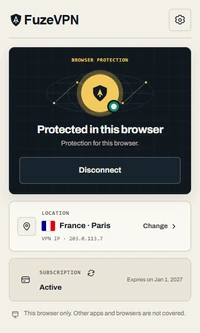
In Firefox, first open about:addons, then FuzeVPN, and allow the extension in private windows: Firefox requires this permission to configure the VPN, even if you only use normal windows. Click the FuzeVPN icon, or, if it is not pinned, open the browser’s “Extensions” menu beside the address bar and select FuzeVPN. Click “Change”, choose a location and click “Protect the browser”. The extension shows “Protected in this browser”, or “VPN active · N exceptions” if you have excluded sites.
How it works in detail
Your browsing, protected in Firefox
In Firefox, when the extension is on, the websites you open go through the VPN server and see its address, not yours. Sites you have excluded and the extension’s own connections to FuzeVPN’s services use your usual connection. Protection if the connection drops is on by default. WebRTC protection, on by default, stops audio and video calls and other real-time connections in Firefox from opening a direct connection outside the VPN, which could reveal your real IP address. The extension does not protect your other apps, such as a video player or email app, or your other browsers.
Firefox extension or Windows app?
Use the extension for your browsing in Firefox. For your other apps, use the Windows or Android app, or a WireGuard or OpenVPN configuration file on Mac or Linux, included in the same subscription.
Installation and first connection
Three steps are all it takes. The Firefox extension then counts as one of the 5 devices your FuzeVPN account allows, even on a computer where the FuzeVPN app is already installed.
Before browsing, check the connection status in the extension.
Frequently asked questions
Do all the websites I open in Firefox go through the VPN?
Yes, while the extension is on, except the ones you have excluded. However, it does not protect the other apps on your device, such as a video player or email app.
Where can I install the extension?
Use the “Add to Firefox” button at the top of this page to install the extension from Firefox Add-ons, then sign in with your FuzeVPN account.
Which languages are available in the FuzeVPN apps and extensions?
The Windows and Android apps and FuzeVPN extensions are available in the website’s 70 main languages. Choose your language in their settings: on Windows, under “Settings → General → Language”; on Android, under “Account → Language”; in the extension, under “Settings → Language”. The list below shows the website’s languages; support also replies in your language within 72 hours.
- English
- Español
- Português
- Deutsch
- Français
- العربية
- Türkçe
- 日本語
- Bahasa Indonesia
- Русский
- Italiano
- 한국어
- Polski
- Nederlands
- हिन्दी
- Tiếng Việt
- Українська
- ไทย
- 简体中文
- 繁體中文
- فارسی
- اردو
- Filipino
- Bahasa Melayu
- Română
- Čeština
- Svenska
- Dansk
- Norsk bokmål
- Ελληνικά
- বাংলা
- Kiswahili
- မြန်မာ
- ភាសាខ្មែរ
- Oʻzbekcha
- नेपाली
- සිංහල
- தமிழ்
- తెలుగు
- मराठी
- ગુજરાતી
- Hausa
- አማርኛ
- Magyar
- Български
- Suomi
- Slovenčina
- Hrvatski
- Српски
- עברית
- ਪੰਜਾਬੀ
- ಕನ್ನಡ
- മലയാളം
- ଓଡ଼ିଆ
- پښتو
- Lietuvių
- Latviešu
- Eesti
- Slovenščina
- Shqip
- Қазақша
- Azərbaycan dili
- Հայերեն
- ქართული
- ລາວ
- Malagasy
- Soomaali
- Yorùbá
- Igbo
- Ikinyarwanda
Do apps and extensions offer dark mode?
Yes, dark mode is available in all FuzeVPN apps and extensions. Choose the dark theme to adapt the interface to your preference: on Windows, under “Settings → General → Appearance”; on Android, under “Account → Appearance”; in the extension, under “Settings → Theme”.